
-
Website
-
3min Explainer Walkthrough

- Generate a Design
-
Page Management

-
Page Editing

-
Form Builder

- Updating Your Navigation Menu
- Creating Page Redirectors
- Posts Management
-
Search Engine Optimization (SEO)

- Setting Up Google Marketing Tools
- Setting Up Meta Pixel & E-commerce Tracking
- Setting Up Microsoft Marketing Tools
- Setting Up Reddit Pixel and E-commerce Tracking
- Setting Up Linkedin Insight Tag
- Optimizing Images For Web
-
Analytics

- Third Party Embed Code
- Special Files
- Setting Up OpenAI Ads Manager
-
3min Explainer Walkthrough
- Contacts
- Marketing
- Commerce
- Apps
- Settings and Config











Accepting Payment via PayPal
Oncord supports the current PayPal integration and the older PayPal (Legacy) payment method. Check which type your website uses before following the instructions below.
Connect PayPal
- Go to Dashboard > Settings > Commerce > Payment Methods.
- Choose New Payment Method and select PayPal as the payment method type, or open an existing PayPal method.
- Click Connect your PayPal Account, then complete PayPal's sign-in and account connection steps.
- After returning to Oncord, open the connected payment method and review its account status. Complete any outstanding PayPal account requirements or email confirmation shown.
- Review the Enabled, Title / Label and Availability settings, then click Save Payment Method.
For testing, select Connect in Sandbox Mode before connecting and use PayPal sandbox accounts. Sandbox payments are test transactions. To switch between sandbox and live payments, disconnect the account and reconnect in the required mode.
Customer Payments and Manual Sales
The current integration uses PayPal's checkout buttons to approve and complete payment. The payment options shown to each customer depend on PayPal's availability and eligibility checks.
When PayPal is available for manual sales, the payment form offers Customer has already paid via PayPal to record an existing payment, or Take payment now via PayPal to complete a new payment. For an existing payment, enter its transaction ID and amount and confirm the details before recording it.
Pay in 4 Messages
Open the PayPal payment method and enable Show "Pay in 4" Messages to display PayPal's messages on product and shopping cart pages. Save the payment method after changing this option. PayPal determines whether the payment option is available to a customer.
Connection and Payment Troubleshooting
Check the connected account status in the PayPal payment method. Follow any prompts to confirm your PayPal email address, complete account requirements or reconnect missing permissions. If a payment appears in PayPal but is missing in Oncord, check the transaction details and contact Oncord Support before attempting another charge.
The current integration verifies payments through PayPal's API. The IPN troubleshooting below applies to PayPal (Legacy).
PayPal (Legacy)
The following instructions and screenshots relate to the older integration, which uses a PayPal Business ID or email address and redirects customers to PayPal to complete payment. This integration is deprecated. For a new setup, use PayPal and follow the connection steps above.
Create a PayPal Account
Navigate to the PayPal website for your country and sign up for a PayPal business account:
Use the Business ID or email address associated with your PayPal business account when configuring the legacy method.
Configuring PayPal (Legacy) Within Oncord
- Go to Dashboard > Settings > Commerce > Payment Methods.
- Open your existing PayPal (Legacy) method.
- Check the PayPal Business Id / Email value. The email address must exactly match the primary address in your PayPal account preferences.
- Review the payment method's title, enabled status and availability, then click Save Payment Method.
The video below shows the older configuration screen.
What Your Customers Will See
As the final stage of the shopping cart process, customers will choose between your configured payment methods. When PayPal has been configured as above, it will display as a payment option.
You can offer PayPal as a payment option alongside other payment methods concurrently.
After confirming the sale, customers will be re-directed to PayPal to process the transaction. The available payment options, including any guest card payment option, are determined by PayPal:
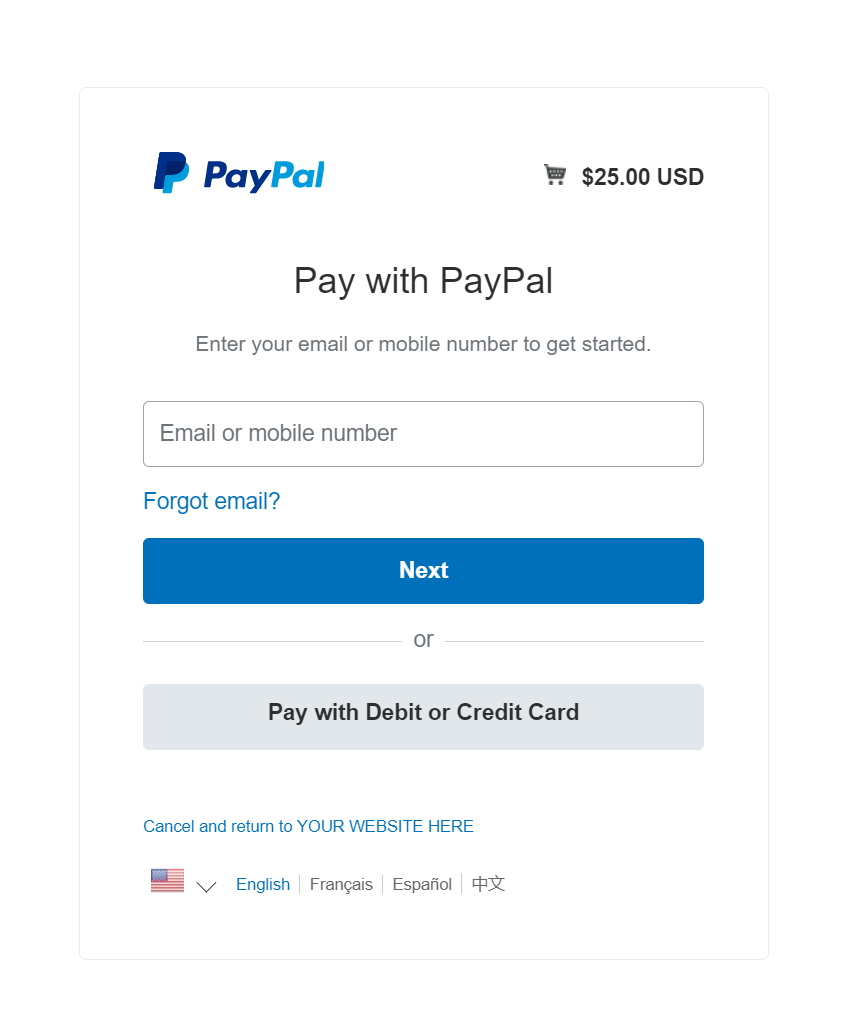
After completing the purchase, customers will be returned to your website and the sale will be confirmed.
Manual Sales With PayPal
In the Manual Sales screen of Oncord, you are given which choice of payment method to use. When selecting PayPal, you are then given the options of "Customer has already paid via PayPal" and "Attempt to charge via PayPal".
- Customer has already paid via PayPal - Useful if the customer has already paid and you're wanting to create an invoice from the transaction id.
- Attempt to charge credit card via PayPal - Can be used to redirect the administrator to the PayPal payment screen to enter and charge customer cards without creating a customer PayPal account. This will not work if the customer has a PayPal account with the card you are entering added to it.
PayPal Pay in 4
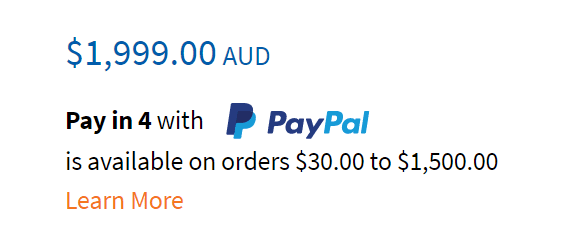
PayPal offers a Buy Now, Pay Later solution called "Pay in 4". To find out more, visit the PayPal website. (PayPal Australia: https://www.paypal.com/au/business/buy-now-pay-later)
Within your Oncord account, you can enable "Pay in 4 Messages", which will display on the product detail and shopping cart pages.
Technical Information
PayPal (Legacy) uses PayPal IPN. IPN is an acronym for "Instant Payment Notification". It is a technique which automatically verifies and records payments into the Oncord database without any manual intervention.